
Thursday, December 13, 2007

Using the Year End Wizard in Peachtree


“PeachPodCast” - A Podcast for Peachtree and One Write Plus users featuring helpful information, tips, tricks and suggestions for bookkeepers, business owners, and consultants. You can listen to our archived podcasts at peachpodcast.custmbiz.com.


If you are using QuickBooks, check out my QuickBooksGal podcasts at blog.quickbooksgal.com and if you use Microsoft Office Accounting, our new MicroPodCasts are available at micropodcast.custmbiz.com. You can find links to these and my websites at blog.quickbooksgal.com.


Today I want to follow up on a previous podcast and tell you about the Year End Wizard that's part of Peachtree Accounting Software. As many of you know, you can only keep two years (24 accounting periods) open in Peachtree. Then you have to close the oldest year and archive that year in order to move forward into the coming year.


The Year-End wizard walks you through the process of closing out your first open fiscal year, payroll tax year, or both. At every point in the process, the wizard makes your options clear
and tells you the consequences of every action you might take. Before you launch the wizard, there are a number of tasks you should perform.

These include

1 - Printing out any unprinted items such as invoices and payroll checks

2 - Clearing the Waiting on Bill from Vendor check box in the Purchases/Receive Inventory window for any outstanding vendor purchases.


If you start the wizard before performing this task,
the wizard will not be able to proceed. You will have to exit the wizard and clear the check box before you can complete year-end close. You may also want to purge inactive records before you start the wizard, though this can be done at any time, including after year-end close.

Purging records is accomplished with the Peachtree Purge wizard. Also, while the wizard requires that you back up your company data during the close process, you can do so before launching the wizard if you prefer. In either case, back up of company data is highly recommended.

Year-End Wizard - Close Options

In this window the wizard asks you which open years you want to close. Depending on the available options, you can close either the displayed fiscal year, the displayed payroll tax year, or both the fiscal and the payroll tax years.

The Wizard includes three option buttons:


1 - Fiscal and Payroll Tax Years

2
- Fiscal Year: The wizard will display the appropriate beginning and closing dates for the year.

3 - Payroll Tax Year: The wizard will display the appropriate beginning and closing dates for the year.


Depending on your current accounting period and how your fiscal and payroll tax years are structured, not all of these options may be available. Peachtree will always allow you to close only the appropriate year or years based on your accounting structure, so do not be concerned if all close options are not available to you at one time.

Note: If you have been working in Peachtree for a number of years and have never closed a payroll tax year, the wizard will recommend that you close your fiscal and payroll tax years together. This will close more than one payroll tax year and bring your fiscal and payroll tax years in sync.

To select the desired close options, do the following:

Start the Peachtree Year-End wizard, and click the option button corresponding to the year or years you want to close. When finished, select the Next button to continue the year-end close process.


If you are closing an open fiscal year or years, Peachtree displays the Print Fiscal Year-End Reports window.


If you are closing an open payroll tax year or years, Peachtree displays the Unprinted Items window.


Note: When you select Next, the wizard will determine if you have any purchases still waiting on bills from vendors. If so, the Cannot Proceed window will appear, telling you that you must go to the Purchases window and clear the Waiting on Bill from Vendor check box for each of the purchases before you can continue with year-end close.

If you don't have any outstanding purchases but you do have items such as invoices and payroll checks that haven't been printed, you will see the Unprinted Items window. It will list all items that still need to be printed. At this point you can select Cancel to close the wizard and then print out these items, or you can select the Next button to continue without printing the items.

Year-End Wizard - Print Fiscal Year-End Reports


In order to assure that you have a proper audit trail for your company, it is strongly recommended that you print all fiscal year-end reports. You won't be able to print them once the year-end close process is complete. The report names and reporting periods for each are listed in the table appearing at the center of the window. All reports are preselected in the Peachtree Year-End wizard for printing.


You have two options:

1 - If there are any reports you don't want to print, in the Print column clear the check boxes corresponding to those reports. This will unselect the reports, and they will not print.


Note that
you can use the Check None button to clear all the check boxes or use the Check All button to select all check boxes. When finished, select the Next button to proceed. Peachtree will display the Back Up Company Data window.

2 - If you want to print the listed reports individually instead of having the wizard do it for you, select the Cancel button. The Year-End wizard will close, and you can then print all reports. Note: When you click Next, all chosen reports will print to your default printer, so you should check paper or change printers, if desired, before proceeding.

Year End Wizard-Internal Accounting Review

This window of the Year-End Wizard (available in Premier and higher versions) allows you to run an Internal Accounting Review before you close the year. The Internal Accounting Review checks your company for common transaction mistakes and transactions or conditions that do not adhere to Generally Accepted Accounting Principles. Since you are about to close the year, this is a good time to run the Review and fix any issues that may be revealed. While it is highly recommended that you run the Internal Accounting Review now, it is not required.


Year-End Wizard - New Open Fiscal Years

In this window, the Peachtree Year-End wizard lets you review the accounting periods in your current open fiscal year and next fiscal year. If you need to restructure your company's next fiscal year for tax purposes, you can change the date range of the accounting periods in that year. However, since Peachtree automatically adjusts the dates of the accounting periods, it is generally not necessary to make changes to them yourself.


Note: There are rules governing changes to the date range of accounting periods. If in doubt, consult your accountant before making any changes.

To see the date ranges of the current open fiscal year accounting periods, select the Current Fiscal Year option button. The table at the right side of the window shows the dates of each accounting period in the year. This display is read-only, meaning you can only review the dates, not change them.


To see the date ranges of the next fiscal year accounting periods, select the Next Fiscal Year option button. The table at the right side of the window shows the dates of each accounting period in the year. To change the end dates of any of the displayed accounting periods, click the accounting period whose date you want to change. In the To column, the end date appears in the form DD/MM/YY, and a Calendar button appears next to the date.

Either type in the new To date or click the Calendar button, and then select the new date from the drop-down calendar that appears. When you change the To date, the From date in the next accounting period automatically changes also. When finished, select the Next button to continue the year-end close process.

Peachtree displays the Confirm Year-End Close window.

This window of the Peachtree Year-End wizard lets you confirm the year or years that you will be closing. The first two boxes in the window display the fiscal year and payroll tax year or years that will close. The second two boxes display the two open fiscal and payroll tax years that will be open once the close is complete.

If you have chosen any year-end close options that you think inappropriate, choose the Back button to return to the wizard window where you want to make changes to chosen options. If you're satisfied that you are ready to proceed with year-end close, select the Next button. Peachtree will display the Begin Close-Year Process window.

Year-End Wizard - Begin Close-Year Process

When you see this window, you are ready to start the year-end close. In the Peachtree Year-End wizard, click the Begin Close button. The close process begins. A progress bar appears at the bottom of the window with the legend "Now Closing..." The progress bar shows in real-time the percent of the process that has been completed. When the process is complete, Peachtree displays the Congratulations! window.

Warning: Once the year-end close process starts, it is imperative that you don't cancel the Year-End Wizard. Do not turn off your computer during the close. Since the close process may take a while to complete, you may want to start the process at the end of your business day, making sure you leave the computer running.

What do you want to do next?

When you see this window, the year-end close process has been completed successfully. The window displays the fiscal and payroll tax years you have just closed your company's new open fiscal and payroll tax years your company's current accounting period. To close the Year-End wizard, click the Finish button.


I hope you find this information helpful. If you have questions or comments, please send me an email at jayne@quickbooksgal.com. You can also visit our website: http://www.custmbiz.com/.
Well, that’s it for now. I appreciate your time and hope you will join me again next time for another in our PeachPodCast series.
I’m Jayne Miller, The QuickBooksGal and Your PeachtreePro. Thanks for listening.


Jayne Miller, is the owner of Custom Business Solutions, is a consulting firm in Reno, NV that specializes in providing bookkeeping and software support.

Friday, October 26, 2007

Daylight Savings Time - Are You Ready?


“PeachPodCast” - A Podcast for Peachtree and One Write Plus users featuring helpful information, tips, tricks and suggestions for bookkeepers, business owners, and consultants. You can listen to our archived podcasts at peachpodcast.custmbiz.com. If you are using QuickBooks, check out the QuickBooksGal podcasts at blog.quickbooksgal.com and if you use Microsoft Office Accounting, our new MicroPodCasts are available at micropodcast.custmbiz.com. You can find links to these and my websites at blog.quickbooksgal.com.

Today I just want to remind everyone that the new Daylight Savings Time takes affect on November 4th. While most computers will not be affected, you may want to play it safe and visit the Microsoft Daylight Savings Support Center to determine if you are ready or if you need to take steps to assure that you won't have problems when you turn your computer on after the time change. You can visit them at http://support.microsoft.com/gp/cp_dst or go to
peachpodcast.custmbiz.com or blog.quickbooksgal.com for a link.


I'll be back next week with another Peachtree related podcast...if you have questions or ideas for a topic, send me an email at jayne@quickbooksgal.com.

I hope you find this information helpful. If you have questions or comments, please send me an email at jayne@quickbooksgal.com. You can also visit our website: www.custmbiz.com.

Well, that’s it for now. I appreciate your time and hope you will join me again next time for another in our PeachPodCast series.

I’m Jayne Miller, The QuickBooksGal and Your PeachtreePro. Thanks for listening.

Jayne Miller, is the owner of Custom Business Solutions, is a consulting firm in Reno, NV that specializes in providing bookkeeping and software support.

Monday, October 15, 2007

Adding Custom Logos in Peachtree 2008


“PeachPodCast” - A Podcast for Peachtree and One Write Plus users featuring helpful information, tips, tricks and suggestions for bookkeepers, business owners, and consultants.

You can listen to our archived podcasts at peachpodcast.custmbiz.com. If you are using QuickBooks, check out the QuickBooksGal podcasts at blog.quickbooksgal.com and if you use Microsoft Office Accounting, our new MicroPodCasts are available at micropodcast.custmbiz.com. You can find links to these and my websites at blog.quickbooksgal.com.

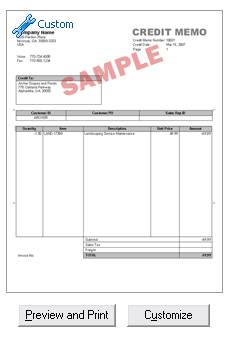
Today, I want to tell you how to add custom logos to invoices, credit memos, statements and other documents in Peachtree. It’s really easy.

First, make sure you have the desired logo on your computer and that you can easily locate it.

Next, from the "Reports and Forms" menu at the top of the Peachtree window, select Forms, and then select the form type that you want to add a logo to (Invoices, Credit Memos, etc).


Then a new window will open listing all of the forms you have of that type. Select the one you want to modify by clicking on it and then clicking the "Customize" button that appears under the picture of that form on the right.


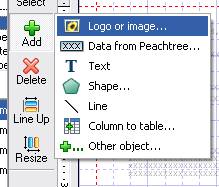
This will open that form in the design window where you can now click the "Add" button. Select "Logo or Image" and then navigate to the logo stored on your computer.


Once that is done, you can move the logo to the location you want, and resize it if needed to produce the result you want.

I hope you find this information helpful. If you have questions or comments, please send me an email at jayne@quickbooksgal.com. You can also visit our website: www.custmbiz.com.

Well, that’s it for now. I appreciate your time and hope you will join me again next time for another in our PeachPodCast series.

I’m Jayne Miller, The QuickBooksGal and Your PeachtreePro. Thanks for listening.

Jayne Miller, is the owner of Custom Business Solutions, is a consulting firm in Reno, NV that specializes in providing bookkeeping and software support.

Saturday, October 13, 2007

W-2, 1099 - Getting Ready for Tax Time


Hi, I'm Jayne Miller, your Peachtree Pro.

Welcome to another in our series of “PeachPods” – informational podcasts about Peachtree and related bookkeeping topics.

You can listen to our archived podcasts at blog.quickbooksgal.com. If you are a Peachtree user, be sure to check out our new PeachPod series at peachpods.custmbiz.com.

Last year I published a podcast about W-2's and 1099's that I think is worth repeating. It's getting to be that time of year and we need to be thinking about some of the things we have to do to get ready. As a business owner with employees or subcontractors you will be required to issue W-2's to employees and 1099-Misc to non-incorporated, non-employee service providers.

Subcontractors and service providers who are not incorporated must provide a form W-9 to you in order to provide the information you need to process a 1099 form for them next January. You can download form W-9 at IRS.GOV.

I generally mail this form to all subcontractors with their first payment. If you haven't done this yet, then it would be a good idea to mail or fax a form W-9 to them now so you will be prepared to process forms in January.

I also get a head start on the W-2 process by creating a form for my employees to complete. I attach it to their paychecks and ask them to complete it and return to me no later than November 15th.

Here's a simple checklist I use each Fall to get ready:

1 - Verify current employee information -create a simple form that you can attach to the next paycheck for each employee requesting their name, current address, social security number. I also include a line for their signature and the date they complete the form. You may even want to attach a W-4 form.

2 - Download Form W-9 - you can fill out this form online, then print multiple copies for distribution to any vendors who will receive a 1099 form. Independent contractors and other non-incorporated vendors who received $600 in the current tax year require issuance of a 1009.

3 - Order forms now - order W-2's, 1099's and corresponding envelopes now. You can visit my website, www.quickbooksgal.com, for money-saving offers or contact the IRS at 800-829-FORMS. The IRS forms are free, but not computer friendly. You can also order extra W-3 and 1096 transmittal forms from the IRS. Local office supply stores will be selling W-2 and 1099 processing kits soon. These are especially great if you process your payroll manually.

4 - Make sure your tax tables are up to date - If you are using QuickBooks, be sure your subscription is up to date and that you are downloading updates when prompted. Peachtree users - make sure you order the tax tables for 2008 soon to assure that you are ready for end of year processing.


Don't forget! W-2 forms for 2007 have been redesigned

Order compliant forms soon to avoid last minute stress!


Are you backing up your data?

Get a flash drive, use a CD, or an external backup system. Once your data is gone, it's gone! Back Up!

Next time: How do I add my logo to invoices, credit memos, and statements in Peachtree 2008

I hope you find this discussion useful. If you have questions about this topic, just drop me a line at jayne@quickbooksgal.com. If you are a Peachtree user, check out peachpods.custmbiz.com.
Don’t forget that we are now serving Incline Village and Lake Tahoe. We have two great consultants in the area that will be happy to assist with QuickBooks or Peachtree training & support.

Visit our website at tahoe.custmbiz.com. QuickBooks newest Point of Sale is great! If you are using POS and need assistance, call us!


Well, that’s it for now. I appreciate your time and hope you will join me again next time for another in our Quicklet series. If there are topics you would like me to cover or have questions, send your email to jayne@quickbooksgal.com.


I’m Jayne Miller, The QuickbooksGal and your Peachtree Pro. Thanks for listening.


Jayne Miller, is the owner of Custom Business Solutions, is a consulting firm in Reno, NV that specializes in providing bookkeeping and software support.

Monday, September 3, 2007

10 Tips for Preventing Fraud


Hi, I’m Jayne Miller, The Peachtree Pro. Welcome to another in our series of “Peach Pods” – informational podcasts about Peachtree, QuickBooks, and related bookkeeping topics. You can listen to our archived podcasts at peachpods.custmbiz.com or blog.quickbooksgal.com.


Today I have a list of tips for preventing fraud that I think will come in quite handy. I have printed them on my blog at peachpods.custmbiz.com if you would like a copy for future reference.


Top Ten Tips to Help Prevent Fraud (in Order of Effectiveness)

1. Send Bank and Credit Card Statements to a Separate Address. Do not send your bank statements to your business address. Have your bank statement sent to your home, PO Box, or lockbox address. Review each check both front and back for payee, signature, and endorsement. Even if you don’t allow your employees to use your credit card, make sure those statements sent to an alternative address too. Examine each statement carefully. Review each and every line item of both payments and charges.

2. Do Not Let Anyone Misrepresent Themselves as You. Do not let them use your password, sign your name, or use your credit card, ever. Never let an employee sign your name, use your credit card, or misrepresent themselves to your bank or credit card company. Reimburse their expense. Don’t reveal sensitive passwords. If you allow your employee to sign your name even on credit card purchases, it could compromise your legal recourse in case of fraud or embezzlement.

3. Reconcile Bank Accounts and Review Statements.
Review every statement. Make sure all bank accounts and credit cards are reconciled. Afterwards, take time to review every reconciliation report. Notice stale checks or deposits that have not cleared the bank. Check for missing deposits. An increase in the number of reconciled items may also reveal mischief.

4. Assign Administrative Rights Effectively. Use the Administrative rights in QuickBooks to protect your data. The first person to set up QuickBooks is by default assigned as Administrator. This role has unique permissions. So the administrator should be designated to either an outside party, i.e., a CPA, a QuickBooks Certified Consultant, or the savvy owner. Make sure that every user is set up separately and that passwords are used. Lock down permissions to change or delete transactions. Especially important: Use passwords for closing dates.

5. Use the Audit Trail in QuickBooks.
If you don’t have the latest version of QuickBooks, make sure you turn on the Audit Trail. Go to Preferences > Accounting and click on the box Audit Trail. Caution: the Audit Trail won’t tell you if a vendor name has been changed or merged. It is wise to maintain a strict paper trail. Supporting documents need to be readily accessible in your files and then archived according to the type of document.

6. Use the Voided/Deleted Transaction Report. After you have turned on the Audit Trail, and made its review part of your routine, periodically review the Voided/Deleted Transaction Report to see which entries which have been modified.

7. Establish Accounting Controls. The principle of countervailing power is the fundamental reason to use checks and balances in accounting. Split the responsibilities between staff members or outside accounting professionals. Warning Sign: If only one person writes the checks and reconciles the account, there is no double check. Separate the duties. Consider another person to do reconciliations so it is done by a person other than the staffer generating the checks. Perhaps a Certified QuickBooks ProAdvisor® or CPA can provide these services.

8. Adhere to a Numerical Sequence. Use a numerical sequence for all transactions. Invoice, bills, and checks which are numbered fall in a logical and chronological order. The reason: To identify missing documents. Look at the bank statement for large gaps. Secure paper checks. If you keep voided paper checks, remember to tear off the signature area to keep it from being misused. If your bank sends paper checks, sort them numerically.

9. Review Receivables and Payables. Look for adjustments to Receivables or Payables. Such adjustments could indicate subverted payments or vendor checks.

10. Back up Your Data. Repeat after me – Back up, back up, back up. Think redundant backups as a contingency plan for disasters of all sorts. Make scheduled copies. Rotate the media (tape drive or portable storage). If you use CDs, better buy the read-only variety. Store your backups at another location. Such diligence can come in especially handy if there is a disaster. In some fraud cases, the bookkeeper may delete all of the QuickBooks files to avoid detection. In such cases the business has to pay a large sum for data retrieval, in hopes of capturing any shred of evidence. Be smart; back up. It only takes a few minutes.


Are you backing up your data?


I hope you find this discussion helpful. If you have questions about this topic, just drop me a line at jayne@quickbooksgal.com. If you are a QuickBooks user, check out blog.quickbooksgal.com for our podcast series about QuickBooks and other related bookkeeping topics. Don’t forget that we are now serving Incline Village and Lake Tahoe. We have two great consultants in the area that will be happy to assist with QuickBooks or Peachtree training & support. Visit our website at tahoe.custmbiz.com.


Well, that’s it for now. I appreciate your time and hope you will join me again next time for another in our PeachPod series. If there are topics you would like me to cover or have questions, send your email to jayne@quickbooksgal.com.Don’t forget to visit our website, www.quickbooksgal.com or www.custmbiz.com to learn more about me and our services. Remember, you can read or listen to past podcasts at blog.quickbooksgal.com or peachpods.custmbiz.com.


I’m Jayne Miller, The Peachtree Pro. Thanks for listening.


Jayne Miller, is the owner of Custom Business Solutions, is a consulting firm in Reno, NV that specializes in providing bookkeeping and software support.

Whats new in Peachtree 2008


What’s New In Peachtree 2008

Hi, I’m Jayne Miller, Peachtree Pro. Welcome to another in our series of “Peach Pods” – informational podcasts about Peachtree, QuickBooks, and related bookkeeping topics. You can listen to our archived podcasts at peachpods.custmbiz.com or blog.quickbooksgal.com.

I’d like to talk about What’s New In Peachtree 2008. The new Peachtree 2008 is out and on store shelves. I have been using it for some time and I have to say that I am very happy with the changes. Before you install it, up may want to listen to my podcast about installation issues as they pertain to your firewall or visit http://www.peachtree.com/support/firewall_install_tips.cfm to make sure you are aware of any issues that could arise when you install the software.


Some of the new features in Peachtree 2008 are listed below. Please note that this discussion will focus on Peachtree Complete Accounting. You will find a complete product comparison and more information at http://www.peachtree.com/peachtreeaccountingline/complete/new_features.cfm#1.


Reporting Improvements


• Effectively see more information
• Enhanced drill-down function
• Select more fields to include; expanded filtering options
• New! Filter date ranges by dates within the 2-year period without accounting period parameters.

For example: May 21 – Jul 4. This enhancement is long overdue and just wonderful.


Forms Design Improvements


• Enhanced customization of invoices, sales orders, and quotes
• Add colors, logos, and more!
• Simplified process


Flexible Unit and Quantity Decimal Settings


• Multiple decimal settings for units & quantities
• Up to 5 decimal places

Add Attachments


• Associate information files (customers, vendors, employees, inventory items)
• Works with Microsoft® Excel® spreadsheets or Word files
• Photos or scanned documents
• Include nearly any info in Peachtree


Hide Navigation Centers


• Permanently hide or show Business Status Center or other Navigation screens
• Reduce the amount of information that you or employees can view
• Faster start up when you use these new features


Saving Records and Transaction Performance


• Saving transactions is faster
• Saving while using open reports is faster
• Speedy “saves” when multi-tasking - open reports/transactions at the same time

Our office is a power user of the new Peachtree. We are very pleased with the improvements this year. If you want more information, visit http://www.peachtree.com/ to compare versions, download a free trial version, or to review new features. Don't forget to double check your computer(s) specs to assure that your processor and ram meet the system requirements of the new Peachtree 2008.

Are you backing up your data?

I hope you find this discussion helpful. If you have questions about this topic, just drop me a line at jayne@quickbooksgal.com. If you are a QuickBooks user, check out blog.quickbooksgal.com for our podcast series about QuickBooks and other related bookkeeping topics. Don’t forget that we are now serving Incline Village and Lake Tahoe. We have two great consultants in the area that will be happy to assist with QuickBooks or Peachtree training & support. Visit our website at tahoe.custmbiz.com.

Well, that’s it for now. I appreciate your time and hope you will join me again next time for another in our PeachPod series. If there are topics you would like me to cover or have questions, send your email to jayne@quickbooksgal.com.

Don’t forget to visit our website, www.quickbooksgal.com or www.custmbiz.com to learn more about me and our services. Remember, you can read or listen to past podcasts at blog.quickbooksgal.com or peachpods.custmbiz.com.

I’m Jayne Miller, Peachtree Pro. Thanks for listening.


Jayne Miller, is the owner of Custom Business Solutions, is a consulting firm in Reno, NV that specializes in providing bookkeeping and software support.


Peachtree 2008 Firewall Installation Issues


Hi, I’m Jayne Miller, the Peachtree Pro. Welcome to another in our series of “Peach Pods” –informational podcasts about Peachtree, QuickBooks, and related bookkeeping topics. You can listen to our archived podcasts at blog.quickbooksgal.com.

Today I’d like to talk about Firewall issues you may encounter when installing the new Peachtree 2008 software. Peachtree 2008 and its Pervasive database can be mistakenly identified as an intrusion threat by many firewall and anti-virus programs.


If you have not already installed Peachtree, it is critical that you do the following:


1. Turn your firewall software on.
2. Turn on firewall alerts.
3. If you get a warning message about Allow or Unblock any of the following files, Allow or Unblock them:


· PEACHW.EXE
· W3DBSMGR.EXE
· W3LGO103.EXE
· PEACHPIM15.EXE
· PEACHUPDATE15.EXE
· PEACHTREEPREFETCHER.EXE
· AIS2.SERVER.CONSOLE.EXE

Some firewalls, like ZoneAlarm, may prompt you to allow additional files. You will need to allow the additional files indicated by the program in order to proceed successfully.

If you have already installed Peachtree


If you have already installed Peachtree and are unable to open a company, you need to set your firewall to allow Peachtree and its Pervasive database to run.


Setting your firewall to work with Peachtree


You can visit
http://www.peachtree.com/support/firewall_install_tips.cfm and click on the links for instructions for the following firewall programs or to find more information on this topic. You will also find a great guide to determining which firewall program you are using.


AOL® 9.0 Security Edition
McAfee® Internet Security Suite
Microsoft® Windows® XP Firewall
Norton Internet SecurityTM
Norton Personal FirewallTM
Trend MicroTM PC-cillinTM Internet Security
ZoneAlarm® Free Edition
ZoneAlarm® Security Suite

If your firewall program is not listed, you may select any of the firewall programs to obtain general guidelines for setting up your firewall, but you should refer to help for your firewall program to get specific assistance.


I hope you find this discussion helpful. If you have questions about this topic, just drop me a line at jayne@quickbooksgal.com. If you are a QuickBooks user, check out blog.quickbooksgal.com for our podcast series about QuickBooks and other related bookkeeping topics. Don’t forget that we are now serving Incline Village and Lake Tahoe. We have two great consultants in the area that will be happy to assist with QuickBooks or Peachtree training & support. Visit our website at tahoe.custmbiz.com.


Well, that’s it for now. I appreciate your time and hope you will join me again next time for another in our PeachPod series. If there are topics you would like me to cover or have questions, send your email to jayne@quickbooksgal.com.


Don’t forget to visit our website, www.quickbooksgal.com or www.custmbiz.com to learn more about me and our services. Remember, you can read or listen to past podcasts at blog.quickbooksgal.com or peachpods.custmbiz.com.


I’m Jayne Miller, Peachtree Pro. Thanks for listening.


Jayne Miller, is the owner of Custom Business Solutions, is a consulting firm in Reno, NV that specializes in providing bookkeeping and software support.


Wednesday, July 25, 2007

Peachtree 2007 - What was new?

Today I want to discuss a 3 issues related to the new Peachtree 2007.

As a bookkeeper and trainer, I keep multiple versions of Peachtree on my computer. As a power user, I was originally frustrated with the new user interface, but after using the program for several months now, I really like it. The new dashboard is great. My clients are really happy with the program.

I’ve only found one thing I don’t like: in this version, you can enter an invoice today that is dated in a prior period. An onscreen warning appears, as usually does, but you now can bypass the warning and enter the invoice with the prior period date. I’m sure this move is an attempt to compete with QuickBooks. However when I use Peachtree, this is one of the features that I consider when I select this software versus QuickBooks.

This year, Peachtree 2007’s new Pervasive Data Base, which is great by the way, presented a problem for me as a bookkeeper with clients using older versions
:
· How do I work in prior versions of Peachtree without using the new database and potentially causing my clients to upgrade to the higher version? I don’t want to return data to them that is no longer compatible with their older version?

The answer is that you can turn off the PDB. You should have an icon in you system tray that will allow you to STOP ENGINES AND EXIT the PDB. If you right click on the icon and select the stop engines command before you open prior version of Peachtree, you can continue to work and the data you return to your client will be perfectly compatible.

If you for some reason don’t have this icon in your database, you may need to go online to obtain the latest Ptree updates. If that doesn’t add the icon, you can go to my blog for a printed version of a simple command that will accomplish the same thing.

If you have recently upgraded to Peachtree 2007, be sure to go online to get the latest updates. There were some problems with statement reporting in the original release. SR-1 fixed that. SR-2 and SR-3 are out now. I really like the new Peachtree now that most of the “bugs” have been fixed in these service releases.

If you are using Peachtree version 2007 to process payroll and W-2’s, you should be aware that the forms you need to purchase have changed This is only if you use version 2007. With the new Print-N-Sign capabilities in version 2007, the federal, state and employer copies of the W-2 and the W-3 can be printed and submitted on stock blank paper. Employees copies of Form W-2 (Copies B, C, and 2) have to be printed on IRS approved perforated paper, with individual filing instructions pre-printed on the back. The paper is perforated vertically and horizontally, printing 4 copies of an employee’s W2 on one sheet, making this the only form that needs to be purchased. If you use Peachtree Version 2005 or 2006, you will continue to order the same preprinted W2 and W3 forms as prior years. You can go to http://www.peachtree.com/ptchecksandforms/ to order forms online or call Peachtree forms - 800-344-7071 – to order the proper forms.